We will send you an invoice when:
- You place a new order for a product or service subscription; or
- When your product or service subscription is due for a renewal.
Where We Send Your Invoice
Your invoice will be sent to your registered email address. A copy of your invoice will also be available in your My Moohost account.
Receiving Your Invoice In Email
You will receive the following email that contains details about your invoice:
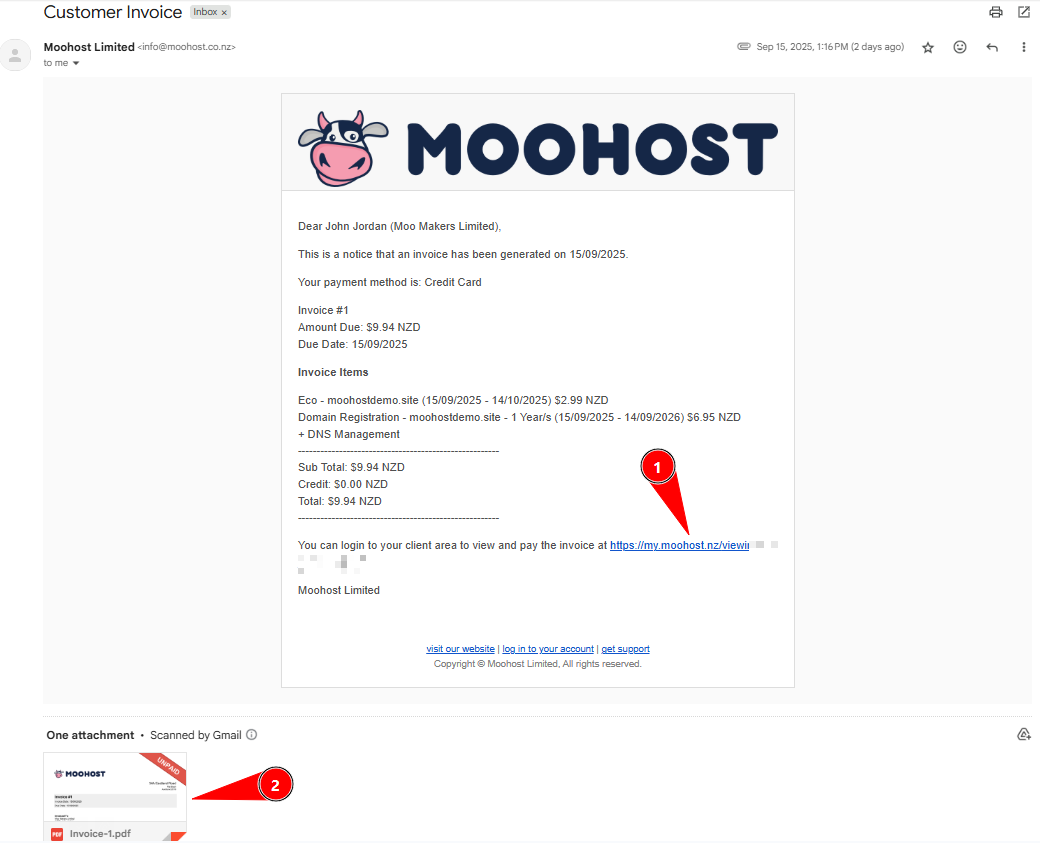
This email contains information about the product/services you ordered, as well as details about your current payment method and the total amount due.
You can also:
- View your invoice online by clicking on the link (copy and paste the link in a new web browser tab or window if clicking on the link doesn't work); and
- View and download a PDF copy of your invoice attached to the email.
Viewing Your Invoice In My Moohost
Your My Moohost account allows you to conveniently view all your invoices from one place. Do the following to view your invoices from your My Moohost account:
Step 1 - Log In to My Moohost
From a compatible web browser, navigate to this link to log in to your account. You can also copy and paste https://btll.ink/74qa if clicking the link doesn't work.
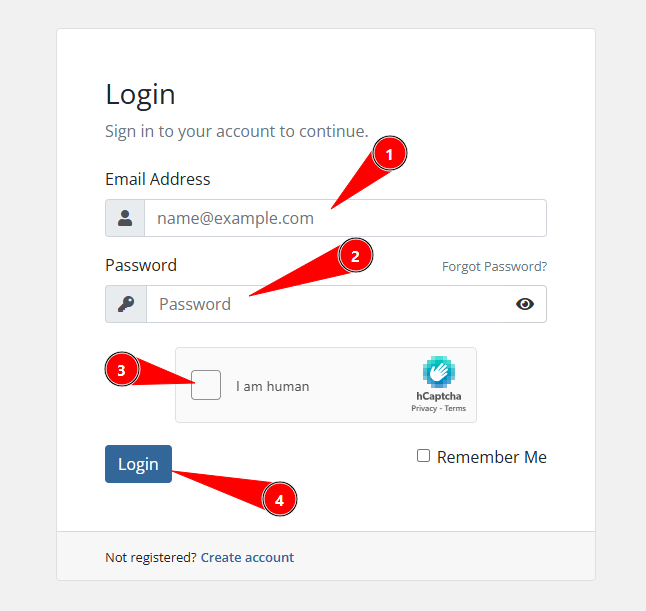
On the Login page:
- Enter your email address in the Email Address field.
- Enter your password in the Password field.
- Click the I am human checkbox and solve the captcha challenge (if presented with one) for anti-spam.
- Click on the Login button to log in.
Step 2 - Locate Your Invoices
Once you are logged in, click on the INVOICES box from the client area:
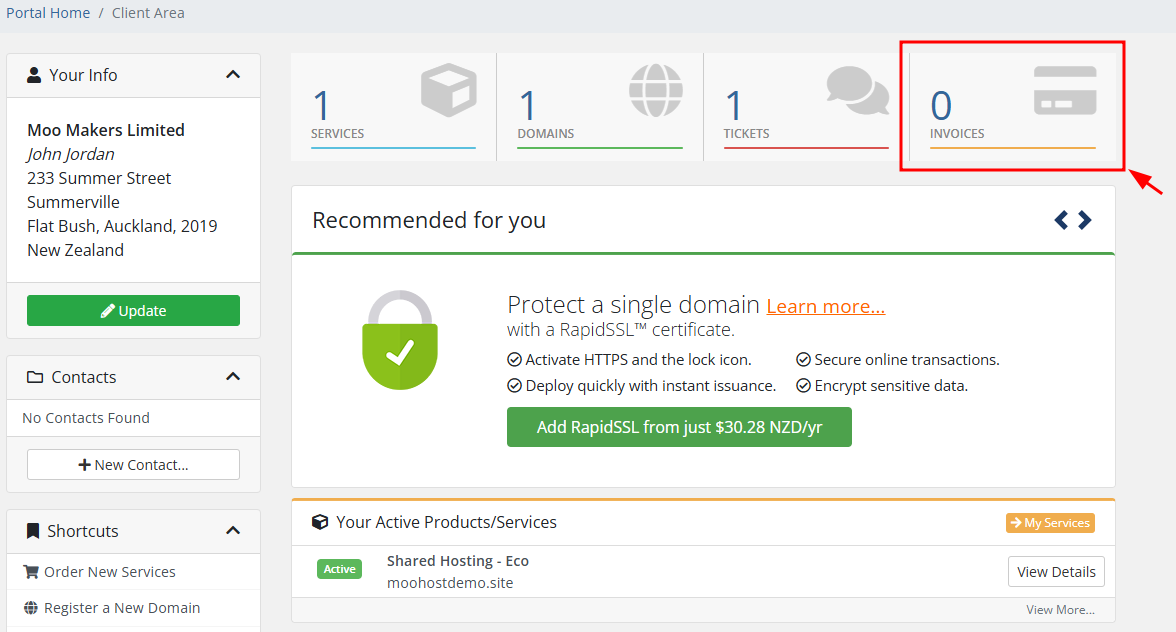
Clicking here will open a list of all your invoices.
You can also view a list of all your invoices by clicking on Billing > My Invoices from the header menu:

Step 3 - View Your Invoice
From the list of invoices, click on the one you wish to view:
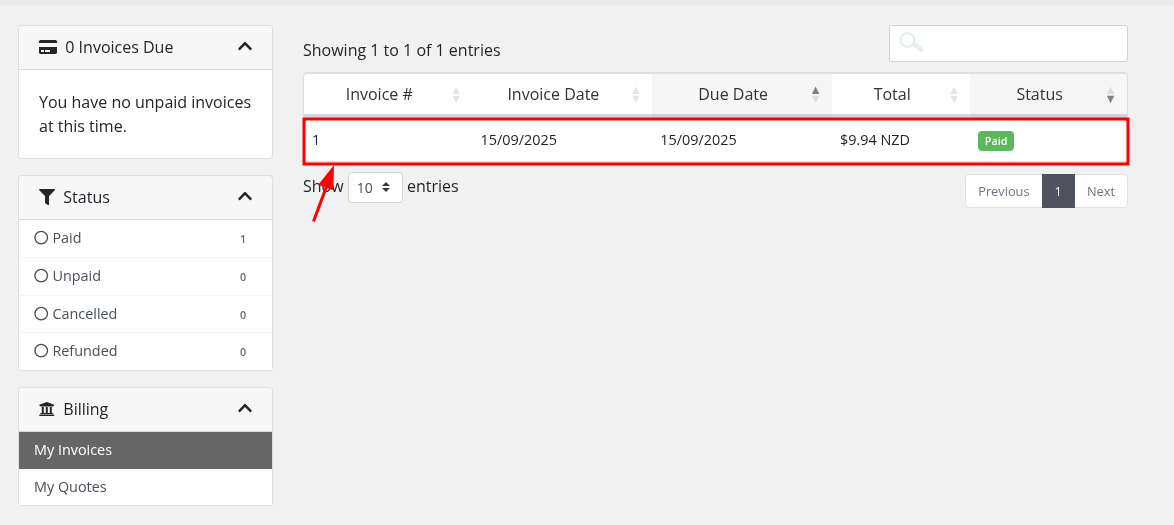
Understanding Invoice Items
Our invoices show the following items:
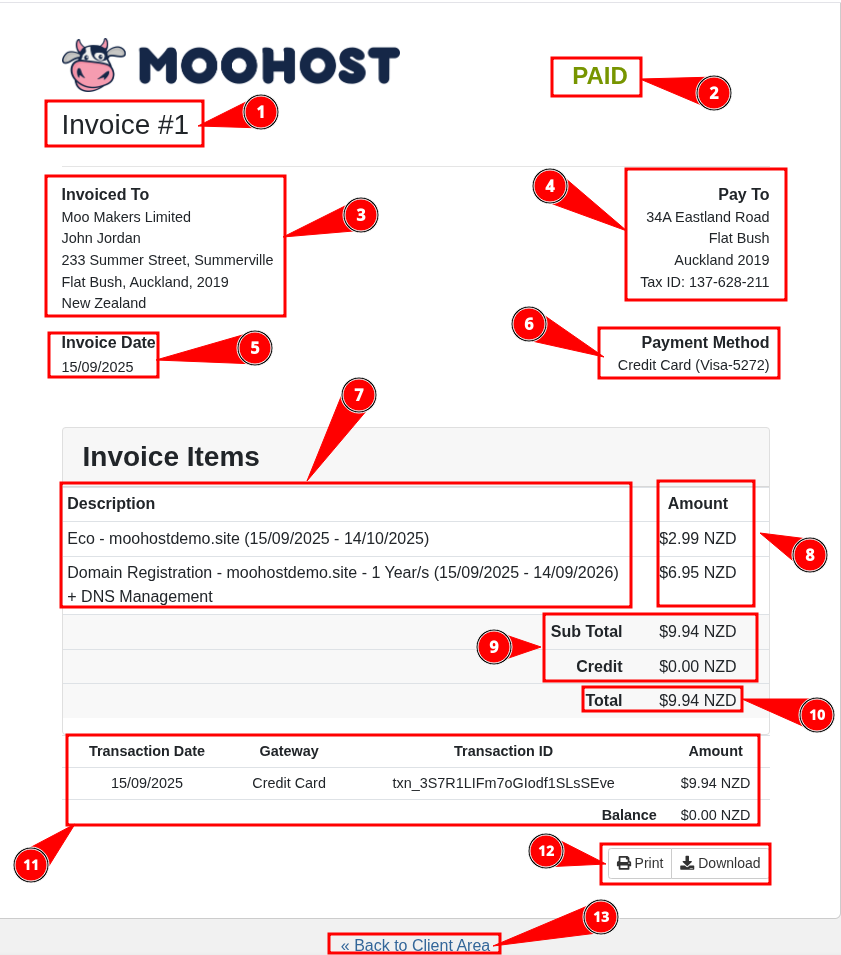
- This is your invoice number. You will need to provide this number to us if you have any questions about your invoice.
- This is the payment status:
- PAID means the invoice has been paid in full.
- UNPAID means you need to pay this invoice in full.
- These are your details. If you have provided us with your business or company name and GST number, it will appear here.
- These are our company details, including our GST number (noted as Tax ID on the invoice).
- This is the date on which the invoice was issued.
- This is the Payment Method we have on file for your account, which must be used to pay this invoice. The last 4 digits of your credit card are also included to help you identify which card was/will be used to pay this invoice.
- The Description sections lists all the services that are billed on the invoice. Domains registered, renewed, transferred, or attached to your web hosting account that is being billed will be included here, together with the duration for which you are billed.
- These are the individual amounts (line amounts) for each service or product you are billed for.
- This is the Sub Total for all the line items and any account Credit you have which is applied on this invoice.
- This is the Total amount payable to us for this invoice.
- These shows any transactions you have made for the invoice and is only shown when an invoice has already been paid.
- These are some options available to you for your invoice:
- Print will open the print options for your device, from where you can print a copy of your invoice.
- Download will save a PDF format of the invoice on your device.
- Clicking the Back to Client Area link will take you back to your My Moohost dashboard.
Getting Help
If you have a question about your invoice, create a support ticket and we will get back to you. If you are unsure how to create a ticket, click here to read the instructions.