This article will discuss the steps you need to take to change the password of an existing email account.
Before You Begin
To follow this help article successfully, please ensure you have:
- An active and eligible shared or dedicated web or email hosting plan.
- An active domain name that is connected to your web hosting account.
- An existing email account. Click here to learn how to create a new email account.
- An active and stable internet connection.
Step 1 - Log In to SPanel
From a compatible web browser, log in to your SPanel by visiting the SPanel URL for your web hosting account as per the Welcome Email. You will need to enter your username and password if you follow this method of logging in.
Alternatively, you can log in to SPanel from your My Moohost account by clicking on the Login to SPanel button from the service details page of your hosting:
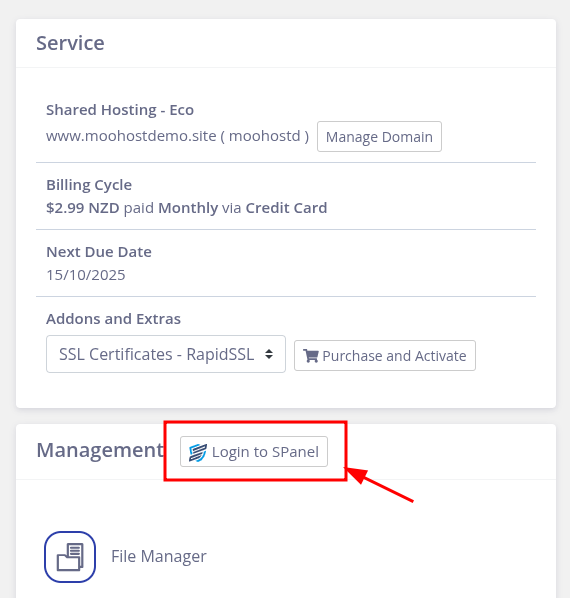
If you log in directly from your My Moohost account, you will not be required to enter your SPanel username and password.
Step 2 - Access Email Accounts
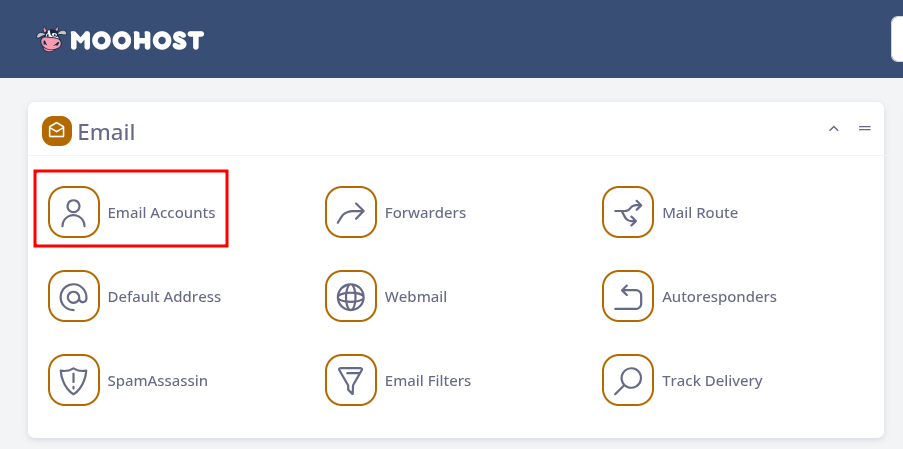
Once logged in to SPanel, click on the Email Accounts option to list the email accounts you have already created:
Step 3 - Change Password
Once you are on the Existing Email Accounts page in SPanel, locate the email account you wish to change the password of and follow the instructions below:
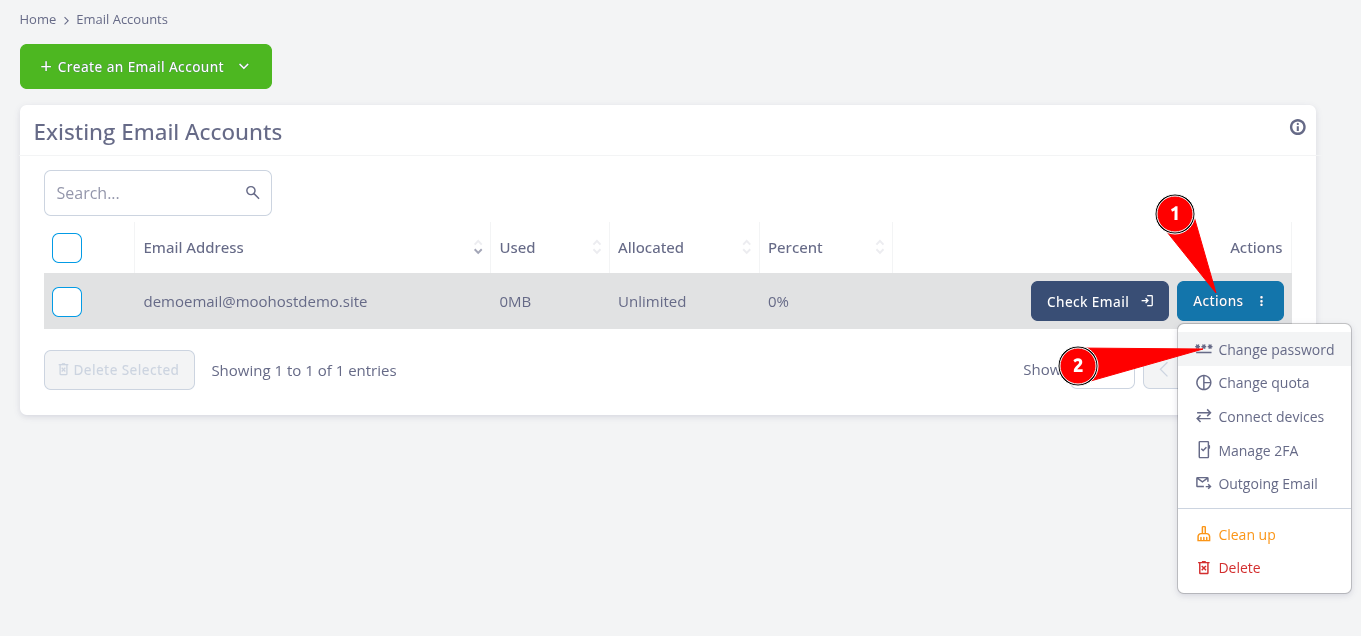
- Click on the Actions button to reveal additional options for the email account.
- Click on Change password to open up the panel.
Option 1 - Set a New Password Yourself
With this option, you can choose a password for the email account:
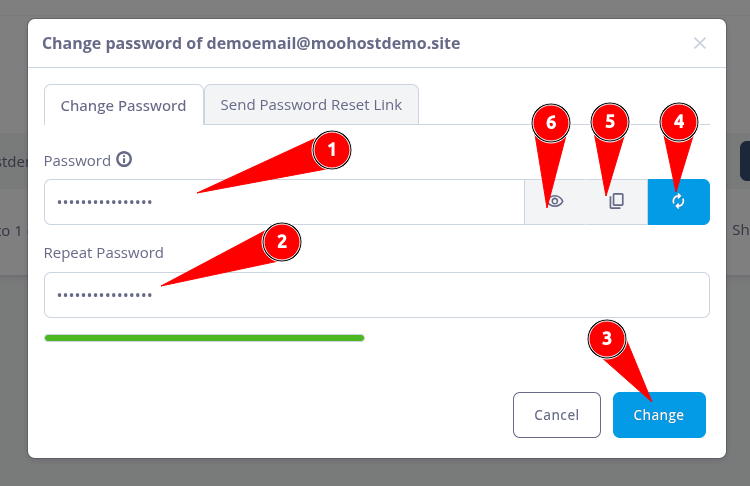
- Enter a new, strong password in the Password field.
- Enter the password once more in the Repeat Password field to confirm.
- Click on Change to finish changing the password.
- Optional: Clicking the arrows here will generate a random, strong password. Ensure you note this password down somewhere safe.
- Optional: Clicking this icon will copy the password to your clipboard.
- Optional: This will temporarily reveal the password.
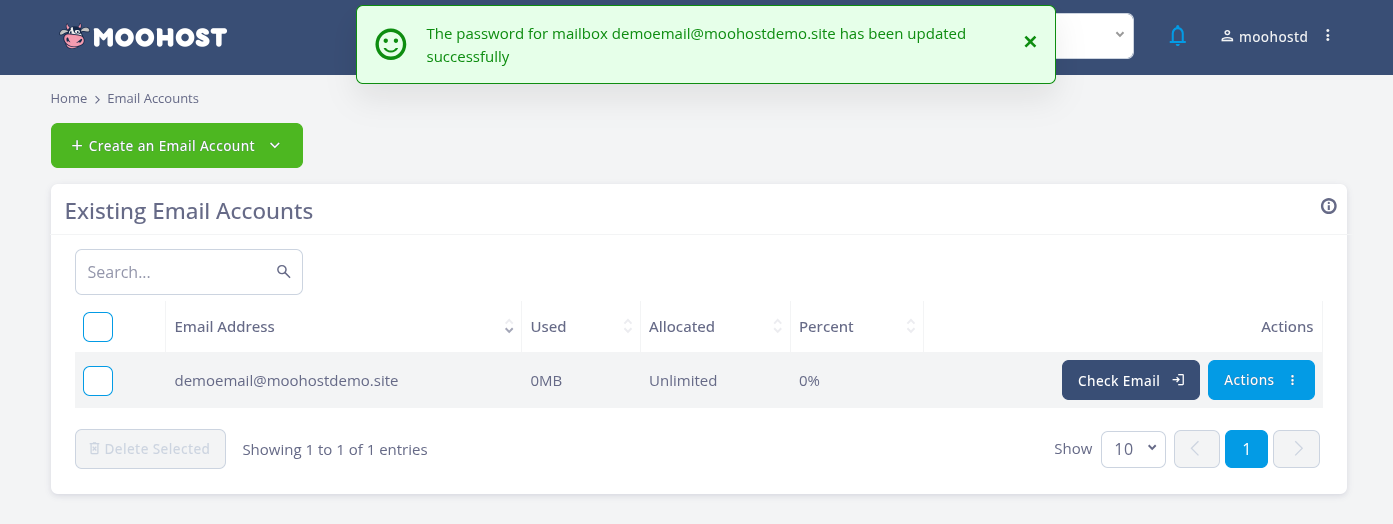
SPanel will display a success message once your password has been changed successfully:
Option 2 - Send a Password Reset Link
Using this option, you can send a link to a different email address which can be used to change the password of the email account. This is particularly useful when the email account user is different from the person who is administering the web/email hosting account.
Follow the instructions below to send a password reset email:
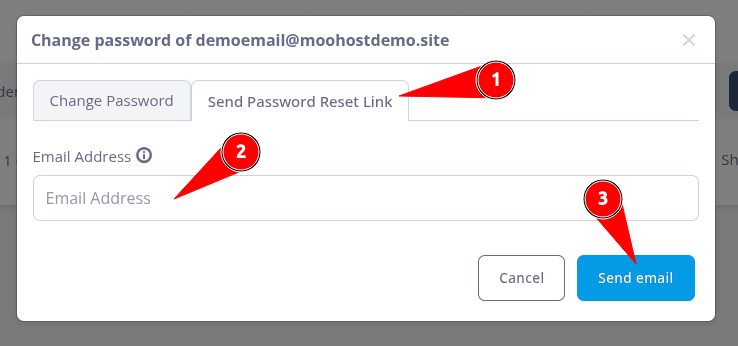
- Click on the Send Password Reset Link tab after opening up the panel for changing the password.
- Enter the email address to which you wish to send the password reset link to in the Email Address field.
- Click on Send email to finish the process.
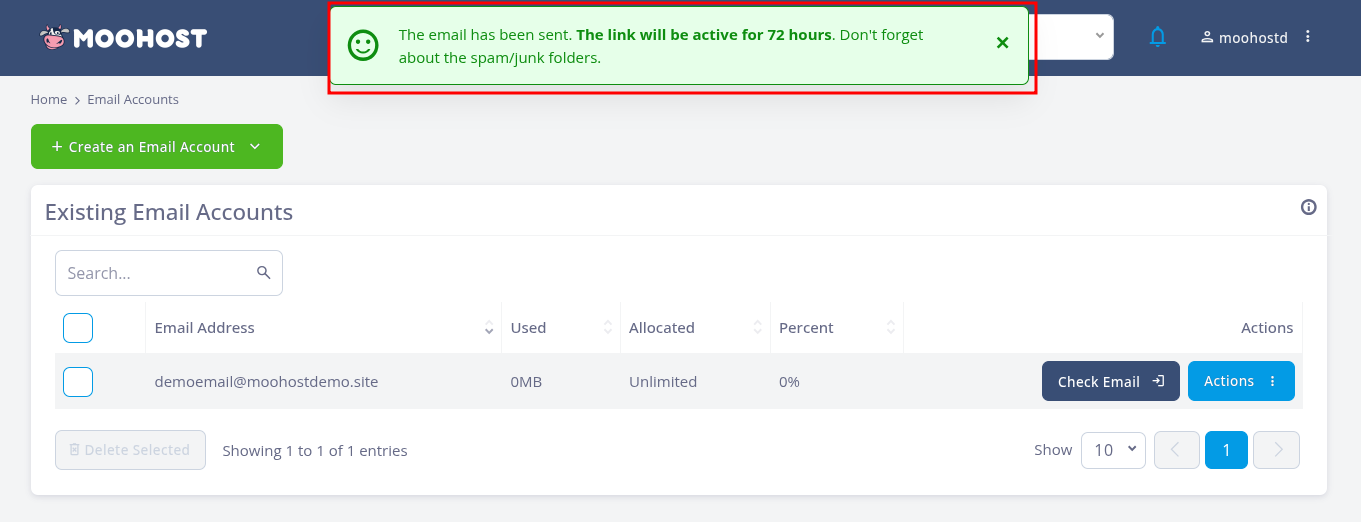
SPanel will display a success message once the email is sent:
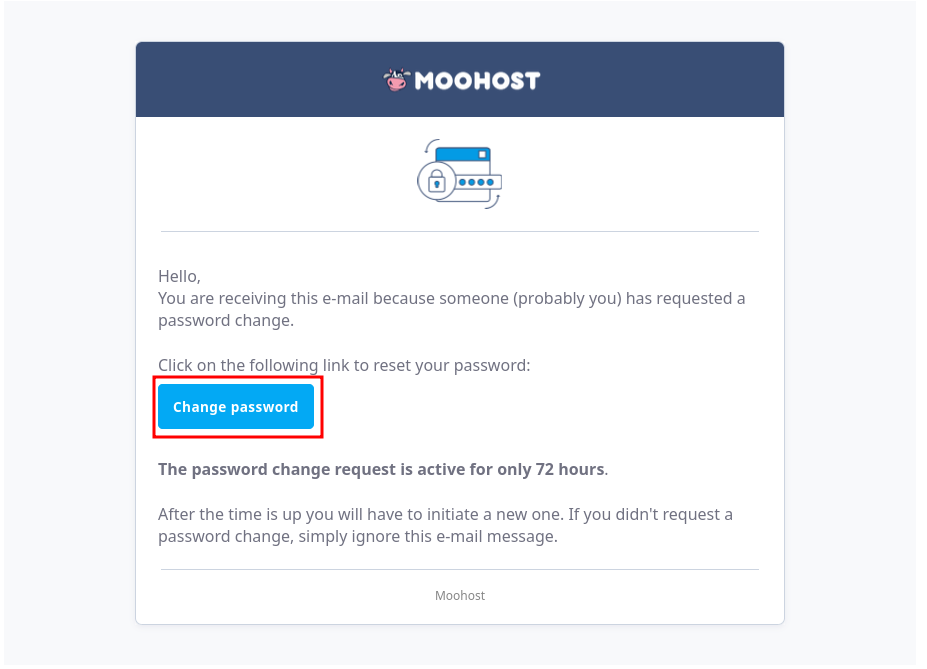
The email address you entered will receive the following email:
Ensure you check the spam/junk folders on your email if you cannot locate this email.
Click on the Change password button to continue. The following page will be displayed when the link is clicked:
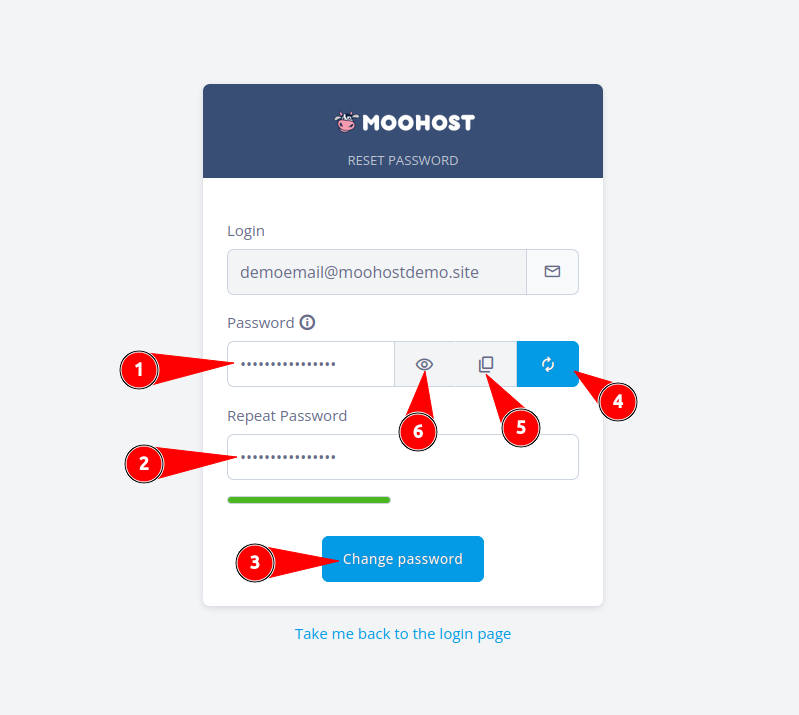
On this page:
- Enter a new, strong password in the Password field.
- Enter the new password once more in the Repeat Password field to confirm
- Click Change password to save the new password.
- Optional: Clicking this option generates a random, strong password.
- Optional: Clicking the icon will copy the password to your clipboard.
- Optional: Clicking here will temporarily reveal the password you have entered or generated.
SPanel will display a success message once your password has been saved:

The page will then reload and take you back to the Webmail login page. Enter your email address and your new password to log in to Webmail.