Subdomains are an essential part of advanced web hosting. It allows website owners and web administrators to separate different websites while maintaining the links to the primary domain.
There are several reasons why you may want to create a subdomain, but the most common reason involves using a subdomain to separate your primary website from an auxiliary website, for example, you could have shop.yourdomain.co.nz instead of using yourdomain.co.nz/shop for your customers to locate your shop easily.
This help article discusses how you can easily create a subdomain using SPanel.
Before You Begin
To be able to follow this help article and successfully create a subdomain, please ensure you have:
- An active and eligible shared or dedicated web hosting plan that allows you to have subdomains.
- An active domain name that is connected to your web hosting account.
- An active and stable internet connection on a compatible desktop or laptop computer.
Step 1 - Log In to SPanel
From a compatible web browser, visit https://yourdomain.co.nz/hostpanel (be sure to substitute the domain name with yours).:
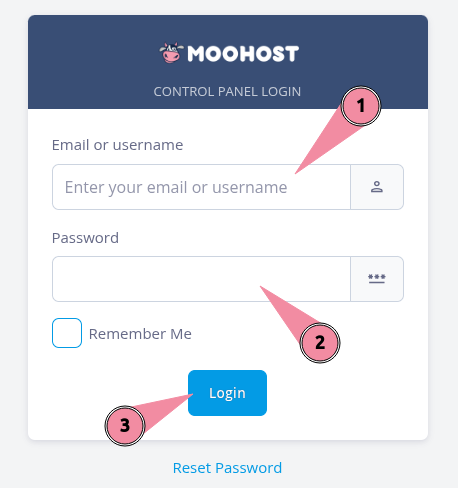
- Enter your username or registered email address in the Email or username field.
- Enter your password in the Password field.
- Click on Login to log in to SPanel.
Step 2 - Access Subdomains
Scroll down to locate the Subdomains menu item in the Domains category:
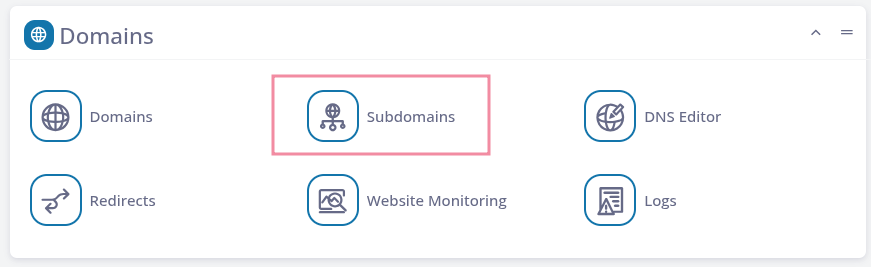
SPanel will reload and display any existing subdomains you have, or give you the option to create a new one.
Step 3 - Add Your Subdomain
To finish adding your new subdomain:
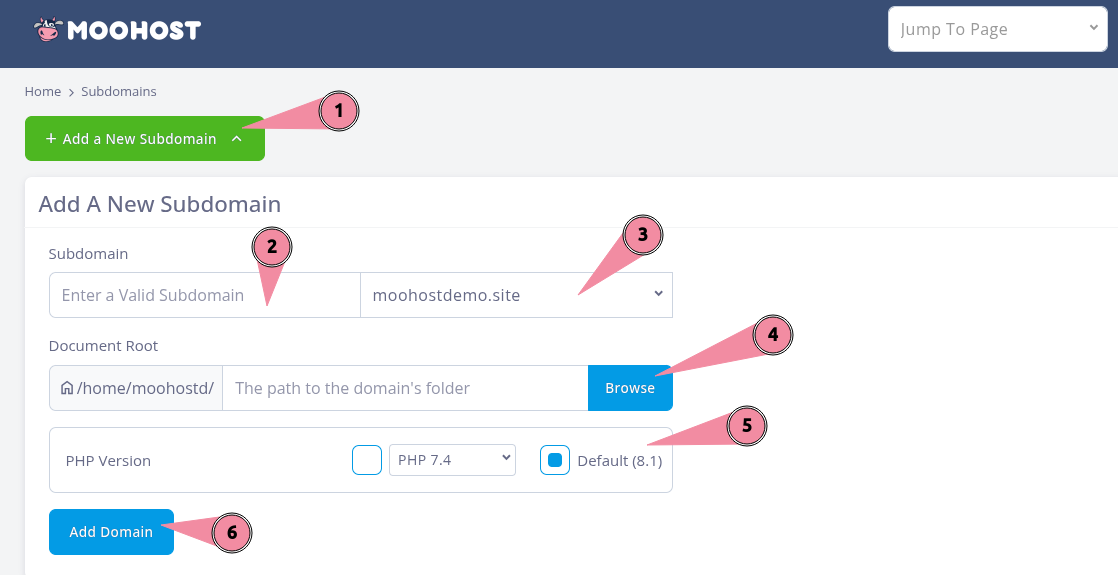
- Click on Add a New Subdomain button to open up the settings for your new subdomain.
- Enter the name of your subdomain in the Subdomain field.
- Optional: Choose your main domain from the dropdown list if you have more than one domains in your web hosting account.
- Optional: You can use this option to set a different file path for your new subdomain. If you leave this blank, the default file path will be selected. You can use this option to locate and select the file path of a subdomain you have deleted earlier.
- Optional: Choose a PHP version. The default PHP version for your web hosting account will already be selected. You can choose a different supported PHP version by clicking on the dropdown list and choosing a PHP version from it.
- Click on Add Domain to finish adding your subdomain.