In some cases, you may want to delete a subdomain you have created. This is particularly done when a project you have been working on is finished and the subdomain is no longer required. It makes sense to remove the subdomain to free up the space it is using if you don't need it any more. This help article will discuss how you can delete a subdomain through SPanel.
Before You Begin
To successfully follow this guide and delete a subdomain, please ensure that you have:
- An active subdomain you have created earlier.
- A compatible laptop or desktop computer with a compatible web browser.
- An active and stable internet connection
- Optional but highly recommended: A backup of the files from your subdomain.
Step 1 - Log In to SPanel
From a compatible web browser, visit https://yourdomain.co.nz/hostpanel (be sure to substitute the domain name with yours).:
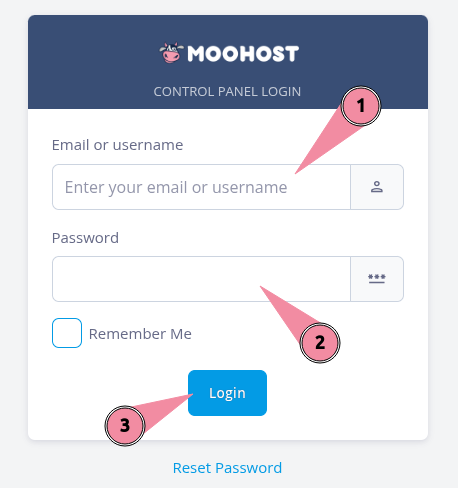
- Enter your username or registered email address in the Email or username field.
- Enter your password in the Password field.
- Click on Login to log in to SPanel.
Step 2 - Access Subdomains
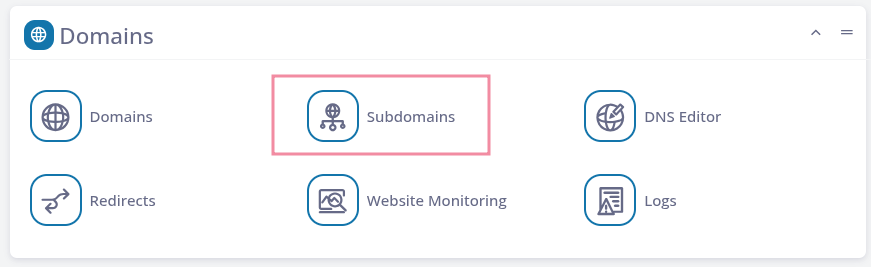
Scroll down to locate the Subdomains menu item in the Domains category:
Step 3 - Delete Your Subdomain
SPanel will display a list of your subdomains:
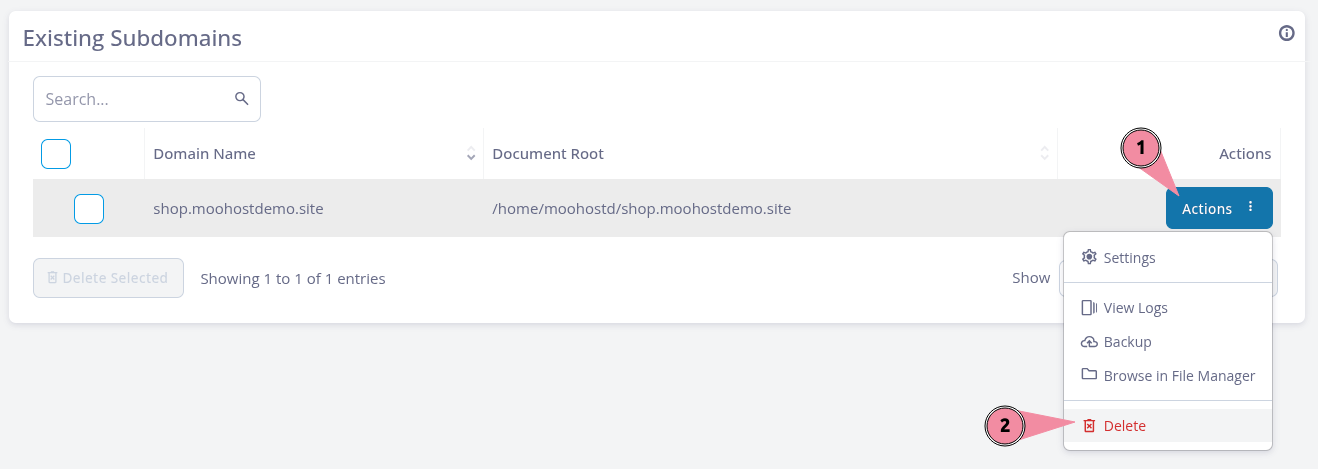
From the list, locate the subdomain you wish to delete and then:
- Click on the Actions menu item to reveal the options for your subdomain.
- Click on Delete to delete your subdomain.
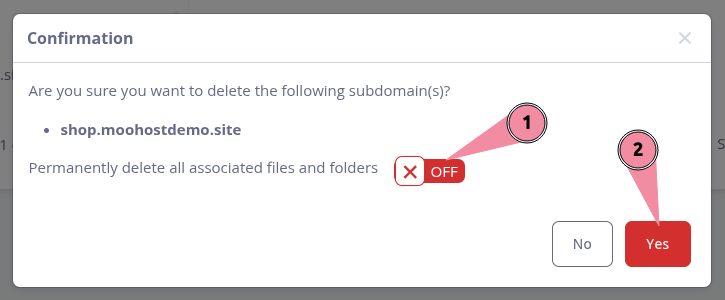
You will see the above options and SPanel will ask you to confirm if you wish to delete your subdomain:
- Toggling this switch allows you to maintain the files from your subdomain if your web hosting plan allows.
- Clicking on Yes will confirm your action and your subdomain will be deleted.