An autoresponder allows you to send a predefined message to the people who send you emails. They are useful in situations where you are unavailable to respond to the emails you receive right away, for example, when you are on a vacation. This help article will discuss how you can set up an autoresponder for an email account through SPanel.
Before You Begin
To be able to successfully set up an autoresponder, please ensure that you have:
- An active eligible web or email hosting plan with us.
- At least one email active email address.
- A compatible laptop or desktop computer with an active and stable internet connection.
Step 1 - Log In to SPanel
From a compatible web browser, visit https://yourdomain.co.nz/hostpanel (be sure to substitute the domain name with yours):
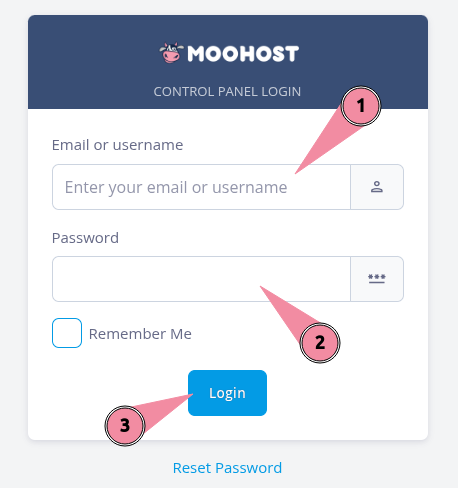
- Enter your username or registered email address in the Email or username field.
- Enter your password in the Password field.
- Click on Login to log in to SPanel.
Step 2 - Access Autoresponders
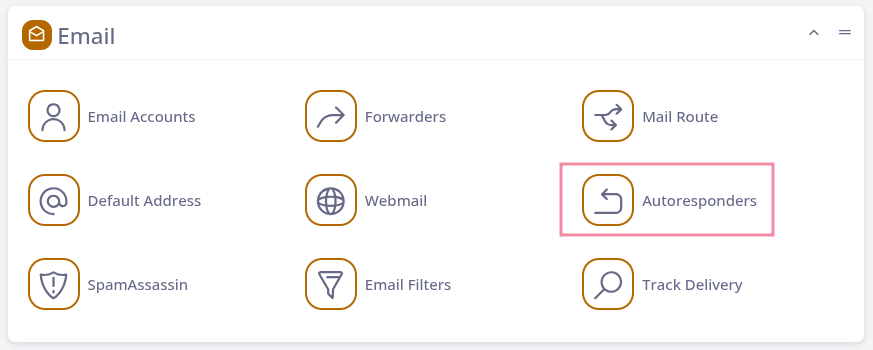
From the SPanel dashboard, click on Autoresponders in the Email section:
Step 3 - Add Your Autoresponder
To finish adding your autoresponder, do the following on the Email Autoresponders page:
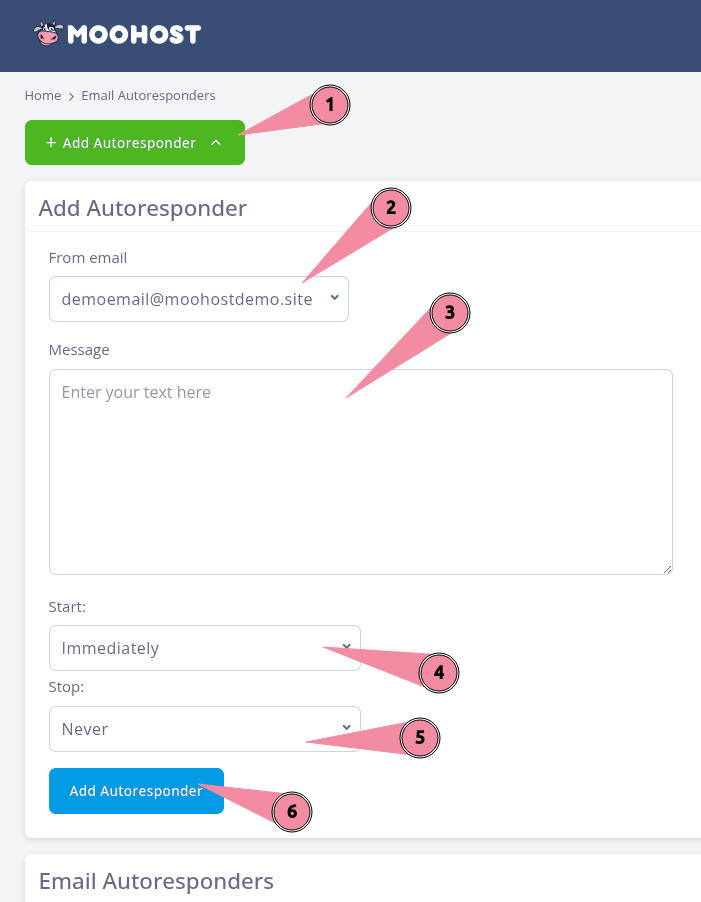
- Click on Add Autoresponder to bring up the options for your autoresponder.
- Choose the email address from which will send the autoresponder from the From email dropdown list.
- Enter the autoresponder message that you wish to send automatically to all email senders to the email address you chose in (2) above by typing it out in the Message field.
- Choose when the autoresponders will start being sent by either specifying a certain date, a certain date with an hour, or immediately from the Start dropdown list.
- Choose when the autoresponders will stop being sent by either specifying a certain date, a certain date with an hour, or immediately from the Stop dropdown list.
- Click on Add Autoresponder to finish adding your autoresponder.