If you are an email user for your domain and wish to change your current password, follow the instructions in this help article.
Before You Begin
To follow this help article successfully, please ensure that you have:
- An active and eligible web or email hosting account.
- An active email account tied to your hosting account. Click here to learn how to create a new email account.
- A stable and active internet connection on a supported laptop or desktop computer.
Important Note: If you have already set up an email client on your computer or phone, changing your email password will log you out of the client. Ensure you set up your account once again or enter the new password when prompted by your email client to continue sending and receiving emails from your email client.
Step 1 - Log In to Webmail
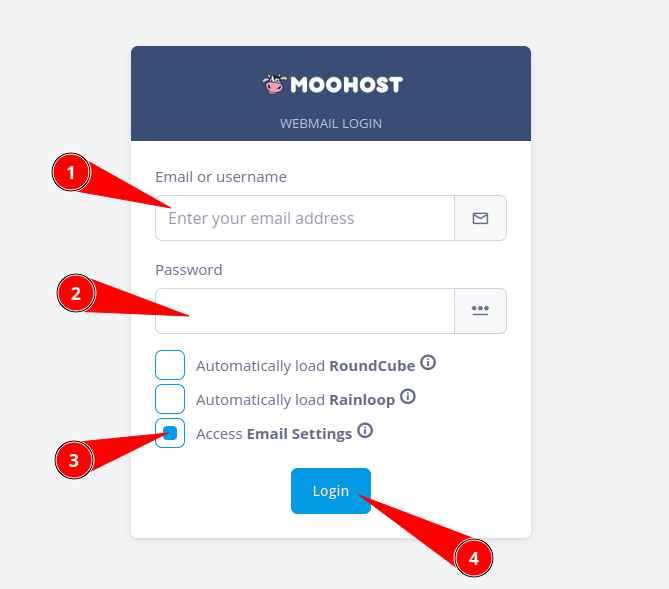
From a compatible web browser, log in to Webmail by visiting https://yourdomain.co.nz/webmail (substitute yourdomain.co.nz with your actual domain name):
On this page:
- Enter your full email address including the complete domain name and extension.
- Enter the current password for your email account.
- Check the Access Email Settings checkbox.
- Click on Login to log in.
Step 2 - Access Email Settings
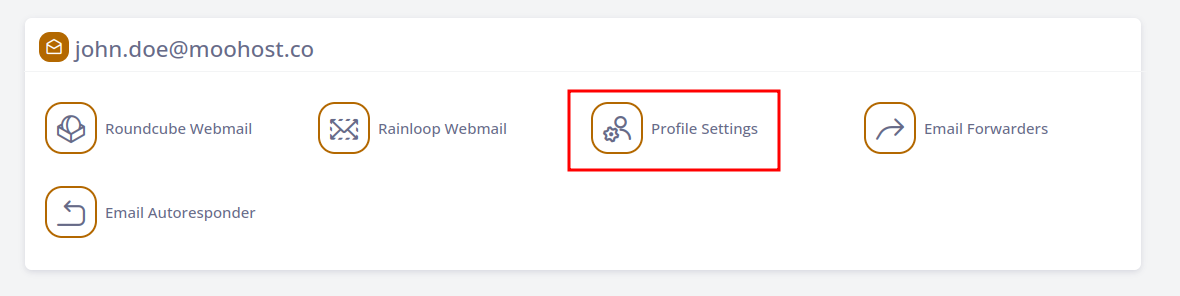
Once logged in, click on Profile Settings to view the settings for your email account:
Step 3 - Change Your Password
Once the page loads, do the following to change your password:
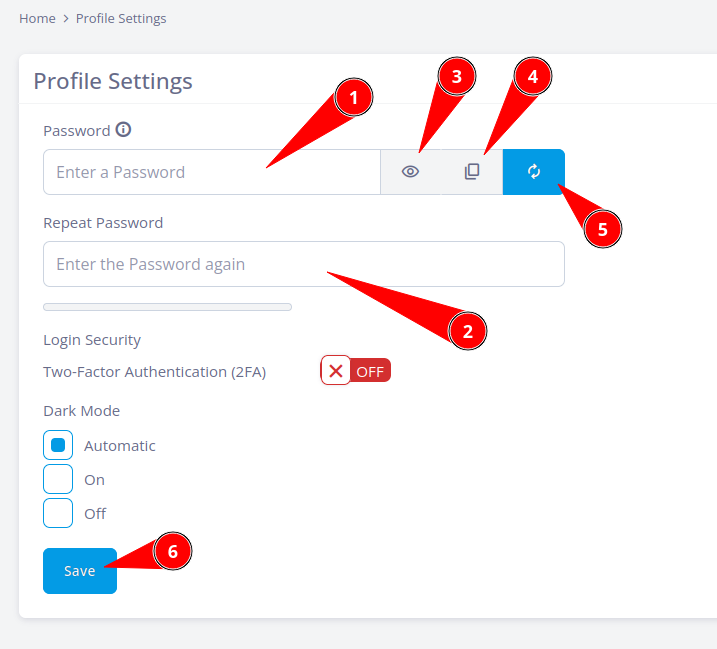
- Enter a new strong password in the Password field.
- Enter your new password once again in the Repeat Password field.
- Optional: Clicking this will unhide the password so you can confirm what you have typed.
- Optional: Clicking this will copy your new password to your device's clipboard.
- Optional: Clicking this will generate a random password. Be sure to copy and paste this password in a safe place.
- Click on Save to update your password.
Your changes will be saved if there are no errors. From then on, use your new password to access Webmail or emails through your email client.